Plan what the viewer needs to see
A useful screen recording has a narrow purpose. Before you press record, write down the task you want someone to complete and the few actions they need to watch. If you are demonstrating how to organize a project board, for example, the viewer may need to see you create a column and move a card. They probably do not need to see your inbox, account settings, or the names of everyone on your team.
Make a short rehearsal without recording. Notice every place where you switch apps, open a menu, type into a field, or wait for a page to load. Those moments often reveal more than the main demonstration: a recent-file list, a profile picture, an autofill suggestion, or a document title. Planning a tighter route makes the lesson easier to follow and gives private details fewer chances to appear.
Build a safe workspace before recording
When possible, demonstrate the task with sample content rather than real customer records, personal messages, or active projects. Use fictional names and example files that make sense for the lesson. If the software offers a test workspace, it may be a good place to record, provided it does not connect to live information you would rather keep private. Check the workspace itself; a sample account can still show your email address or profile name.
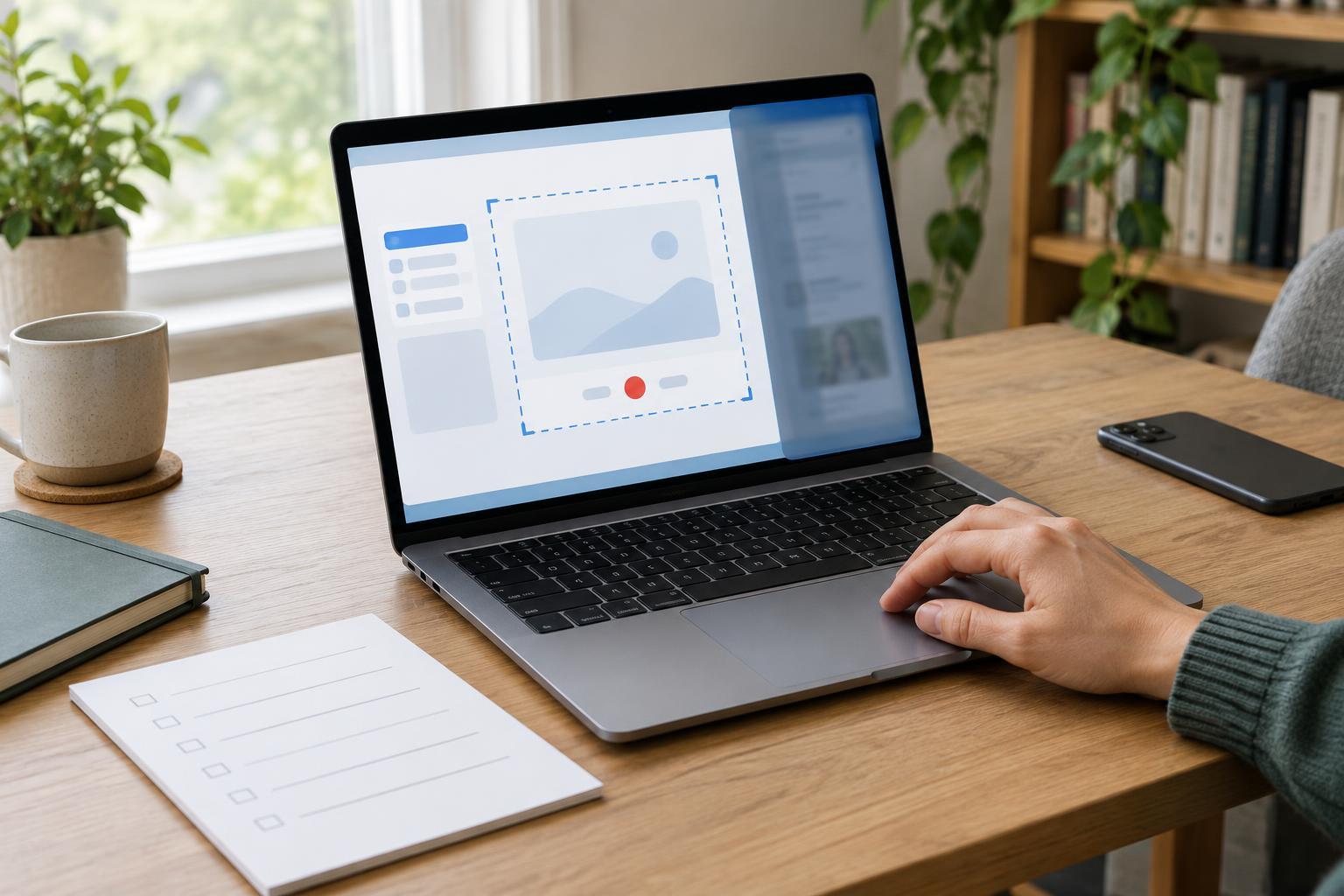
Close unrelated windows and tabs, clear the desktop of sensitive file names, and turn off notifications for the recording session. Consider what your browser might reveal in bookmarks, history suggestions, saved addresses, and password prompts. Choose whether to capture one window or the whole display. A single-window recording can reduce accidental exposure, but menus or pop-ups may open outside that window, so test the capture area first.
Record for clarity, not speed
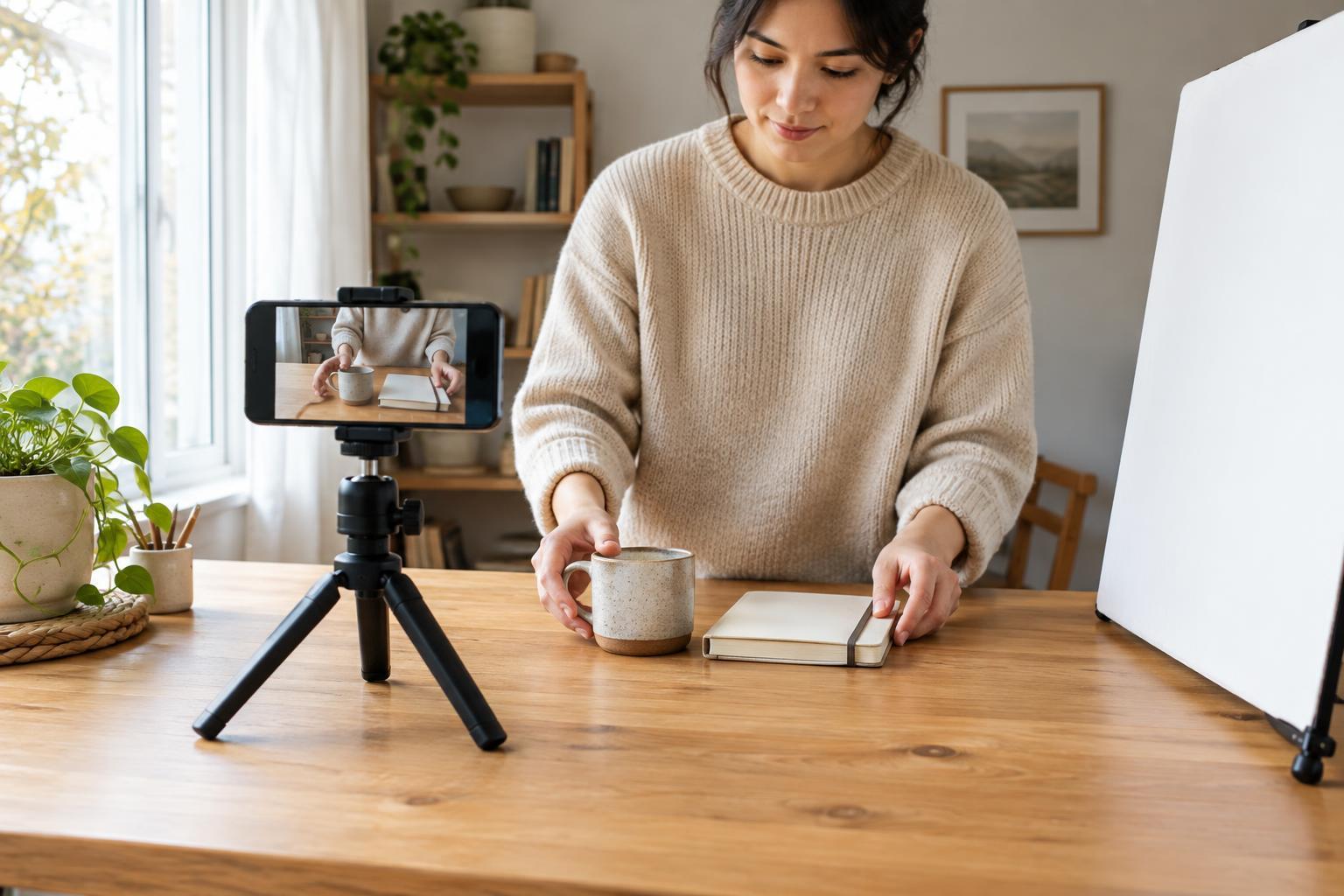
Set the window to a size at which labels are readable, then move the pointer deliberately. Pause briefly before important clicks so viewers can locate the control you are using. If text is too small, enlarge the relevant interface before recording rather than relying on viewers to zoom into a low-resolution video. Keep the example focused: a short recording that completes one task is often more helpful than a tour of every available feature.
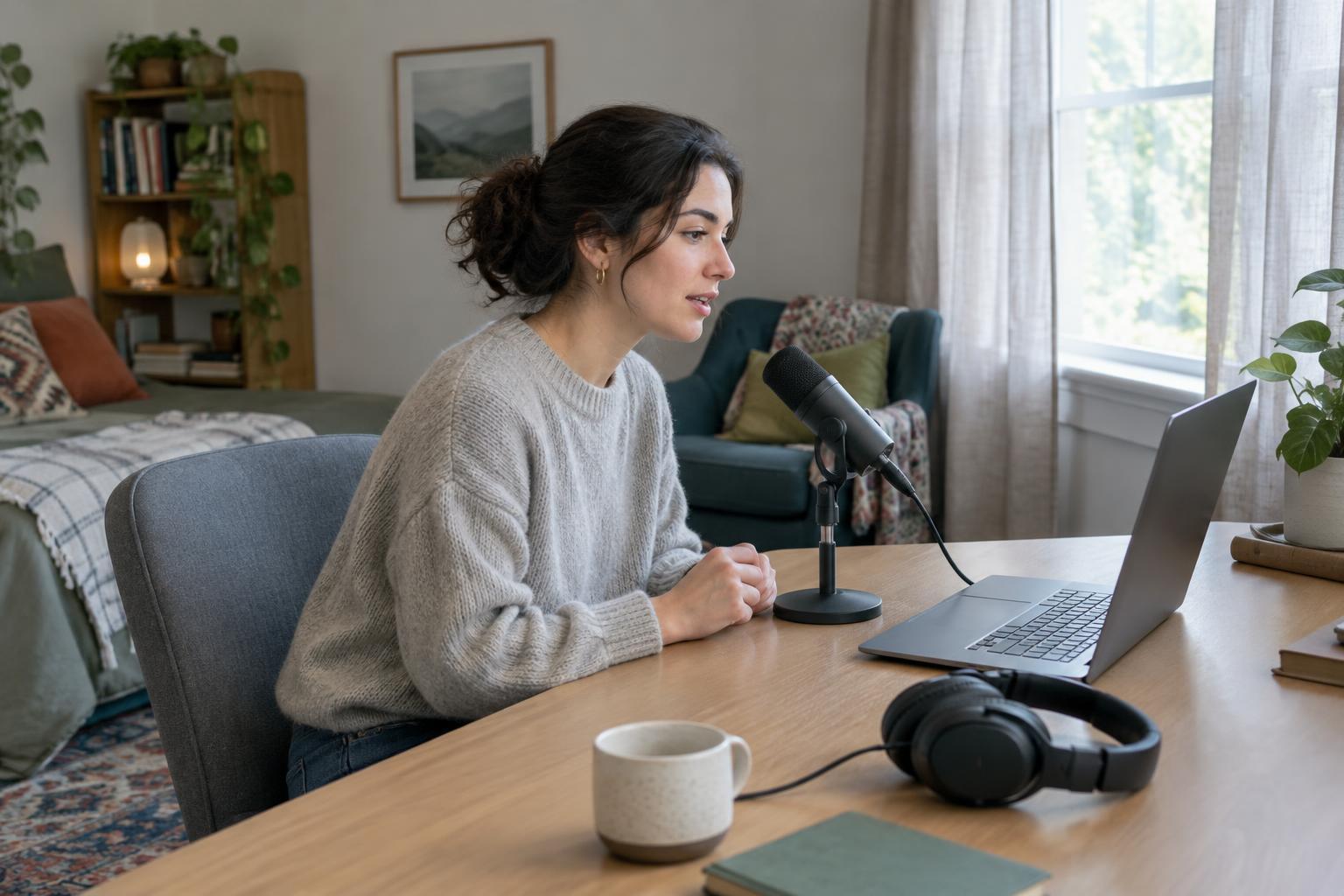
Think about audio as part of the privacy check. A microphone can capture conversations nearby, a spoken name, or an alert from another device. If narration helps, record in a quiet space and describe the action rather than reading private information aloud. You can also record a silent demonstration and add a voiceover afterward. Either way, avoid typing real passwords, recovery codes, payment details, or other secrets on camera, even if you intend to cover them during editing.
Review the entire recording before sharing
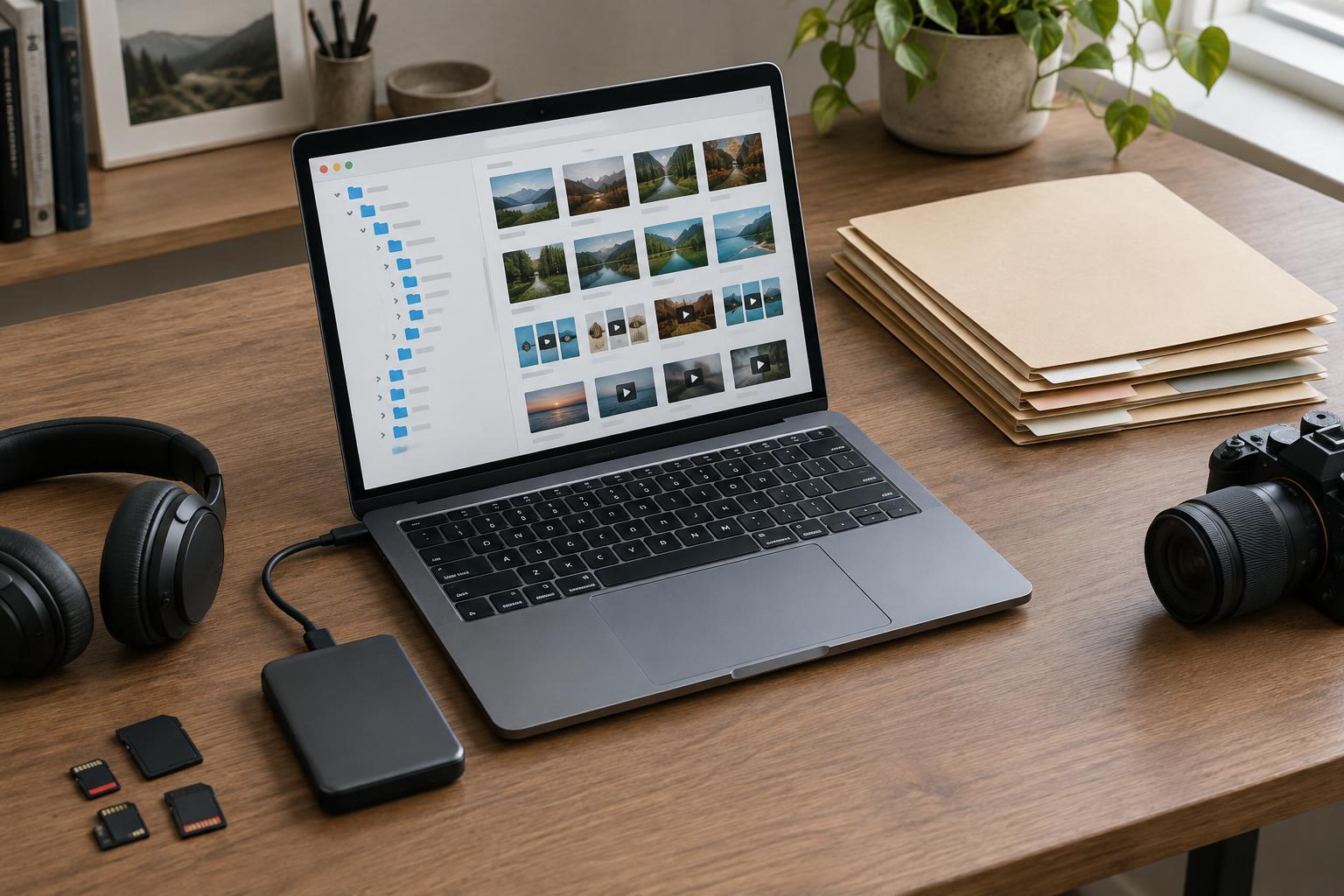
Watch the exported video from beginning to end, not just the section you meant to teach. Pause at app switches, loading screens, drop-down menus, and the first and last frames. Look for names, addresses, message previews, calendar entries, document titles, account identifiers, and unexpected background windows. Listen as carefully as you look. If you made several takes, check that you are reviewing the exact file you plan to publish.
Cropping or blurring can help with a detail you missed, but it is safer to record again if a secret was visible. A blur may shift out of place, and cropping may leave the information visible elsewhere in the frame. After editing, export a fresh file and review that version too. Check its filename and any visible thumbnail or preview frame; these can communicate information even before someone plays the video.
Share the smallest useful version
Remove false starts, long waits, and unrelated detours. A concise edit respects the viewer’s time and reduces the amount of material that needs a privacy review. If your instructions depend on an account or interface that varies by user, say what action to look for rather than promising that every screen will match yours exactly.
Before uploading, confirm where the recording will be available and who can open it. A private team link, an unlisted video, and a public post serve different audiences, but none replaces a careful review of the file. Keep the original recording out of shared folders if it contains mistakes or sensitive material. The goal is not to make every screen look empty; it is to show enough real workflow to help someone succeed, without making other people’s information part of the lesson.