Design for the screen people hold
A graphic can look polished on a large monitor and become difficult to read in a social feed. On a phone, the image appears smaller, competes with nearby posts and may be partly covered by interface elements. Legibility is not just a matter of making the font bigger. It depends on how much you ask the viewer to read, where you place the words and whether the important message is clear at a glance.
Start by deciding what the graphic needs to do. It might introduce a topic, highlight one idea or invite someone to read a caption. Give that job to the graphic rather than trying to fit an entire explanation inside it. If the wording only makes sense after a long pause, consider moving the detail into the caption or a later slide.
Give the main message room to lead
A short headline is easier to size and scan than a dense block of copy. Write the sentence in plain language, then remove words that do not change its meaning. If you need supporting text, make its role distinct: a brief label, a clarifying line or a call to action. Avoid making every line equally bold. When everything demands attention, the reader has to work out where to begin.
Build a simple hierarchy with size, weight and position. The main idea should be the easiest text to spot; supporting information can be quieter without becoming tiny. Break lines where the phrasing naturally pauses, not merely where the text happens to reach the edge. A headline split into awkward fragments can be harder to understand even when every letter is visible.
Choose type for clarity, not decoration
A typeface with clear letterforms is a dependable starting point. Decorative lettering can express a mood, but it often needs more space and may become ambiguous when reduced. If you use it for a short headline, pair it with a simpler style for any smaller text. Keep the number of type styles limited so the graphic feels intentional rather than crowded.
Spacing matters as much as the font choice. Give letters and lines enough room to remain distinct, especially in smaller labels. Watch for thin strokes, tightly packed capitals and long passages set in all caps, which can slow reading at phone size. Do not rely on a minimum font size chosen in a desktop editor alone: export the graphic and judge the actual result on a phone.
Make contrast work across the whole image
Text needs to stand apart from its background. Dark lettering on a light, quiet area or light lettering on a dark one is usually easier to manage than words placed over a busy photograph. A shadow or outline may help in some cases, but it cannot reliably rescue text that crosses both bright and dark details. Instead, try a solid text panel, a subtle overlay or a crop that creates a calmer space for the words.
Check every line, not just the headline. A color pairing may appear strong in one part of an image and weak in another. Color should also not carry meaning by itself: if one phrase is the key point, distinguish it through wording, placement or weight as well. Leave space around the text and keep it away from the outer edges, where cropping or on-screen controls may interfere.
Test the finished graphic in context
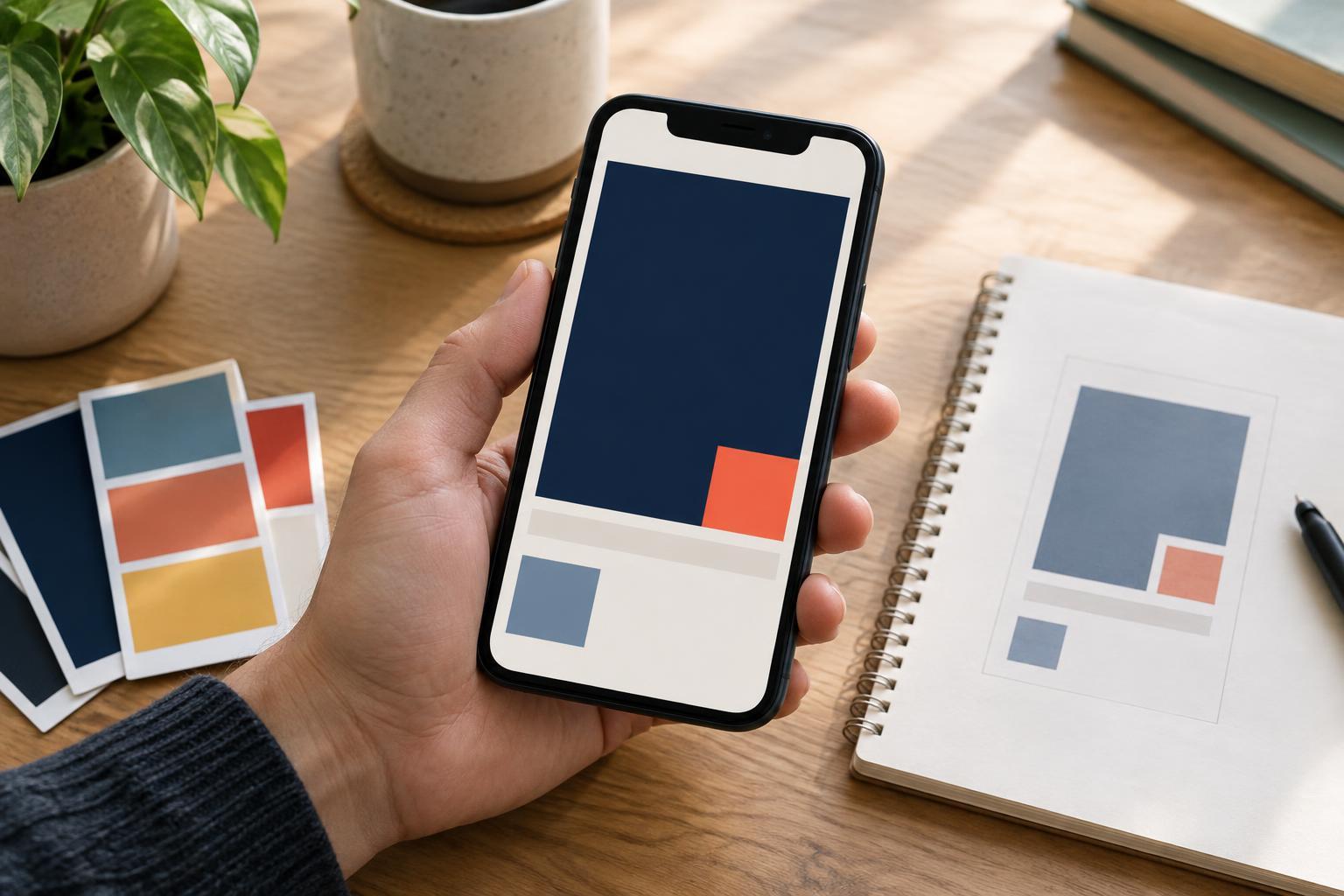
Before publishing, view the exported file on a phone at the size it is likely to appear in a feed. Do not zoom in for the first check. Ask whether you can read the headline immediately, whether the supporting text remains comfortable to read and whether anything important sits too close to an edge. If the design has several slides, check each one; a readable cover does not guarantee readable follow-ups.
Then make a practical revision rather than squeezing everything harder. Enlarge the key text, shorten a sentence, simplify the background or split a crowded idea into another slide. Reading the words aloud can reveal phrasing that is too complicated for a quick visual format. The aim is not to remove personality from the design. It is to make sure the personality never gets in the way of the message.